
Huawei’s Emotion UI has useful gestures such as a screenshot, scroll without touching the screen. The EMUI 10/10.1 brings Knuckle gestures with an “S (draw)” pattern to capture scrolling screenshots and more. Check the list of basic gestures available in Huawei’s EMUI.
List of available Gestures in EMUI 10 and EMUI 10.1:
- Air scroll
- Take a Grabshot
- Back
- Back to the home screen
- View recent tasks
- Close an app
- Take a screenshot
- Take a Scrollshot
- Capture part of the screen
- Record screen
- Split screen
- Split the screen
- Access Home screen editing mode
- Display the shortcut panel on the lock screen
- Display the search bar
- Open the notification panel
Air scroll:
To air scroll, do the following:
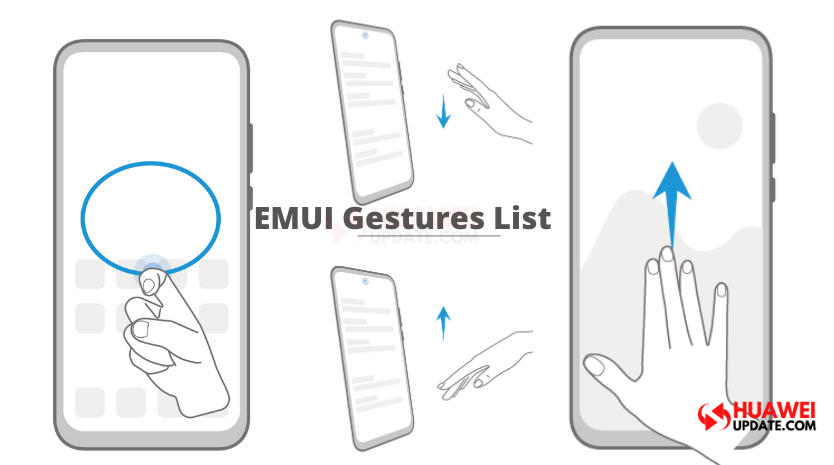
Scroll down: Hold your hand half an arm’s length away from the screen, with the palm of the hand facing the screen, and your fingers pointing upwards. After (Hand iCon) appears at the top of the screen, move your hand downwards to begin scrolling.
Scroll up: Hold your hand half an arm’s length away from the screen, with the back of the hand facing the screen, and your fingers pointing downwards. After (Hand iCon) appears at the top of the screen, move your hand upwards to begin scrolling.


Take a Grabshot:
Place your hand half an arm’s length away from the screen with the palm of the hand facing the screen, and wait for (Hand iCon) to appear at the top of the screen. Then close your fist to capture a screenshot.


System Navigation Gestures
Go to Settings > System & updates > System navigation and ensure that Gestures is selected.
Back:
Swipe inward from the left or right edge to return to the previous screen.


Back to the home screen:
Swipe up from the bottom to go to the home screen.

View recent tasks:
Swipe up from the bottom of the screen and hold to view recent tasks.

Close an app:
On the recent tasks screen, swipe up on an app preview to close the app.

Knuckle Gestures:
Go to Settings > Accessibility features > Shortcuts & gestures to enable Take screenshot, Record screen, and Split screen.
Take a screenshot:
Knock twice on the screen with a knuckle to take a screenshot.

Take a Scrollshot:
Knock on the screen with a knuckle and draw an “S” to take a scrolling screenshot.


Capture part of the screen:
Knock and draw an enclosed area with a knuckle to capture part of the screen.

Record screen:
Knock twice on the screen with two knuckles to start or end a screen recording.

Split screen:
Firmly draw a line across the screen with a knuckle to enter split-screen mode.


Split the screen:
Swipe up on the screen with three fingers.

Access Home screen editing mode:
Pinch two fingers together on the home screen.

Display the shortcut panel on the lock screen:
Swipe up from the bottom of the lock screen.

Display the search bar:
Swipe down on the home screen.

Open the notification panel:
Swipe down from the status bar.

Check more tips and tricks here.
Huawei Update Social Platform Links – Facebook, Twitter & Telegram