
How to factory reset Huawei P20 Pro and P20 EMUI 8.1
Step 1: Press & hold the power button for 5-7 seconds
Step 2: Touch Power off
Now wait until your device power off completely.
Step 3: Press the power button and volume up button at same time until screen on
Step 4: Now release power key but holding the volume up button for few seconds
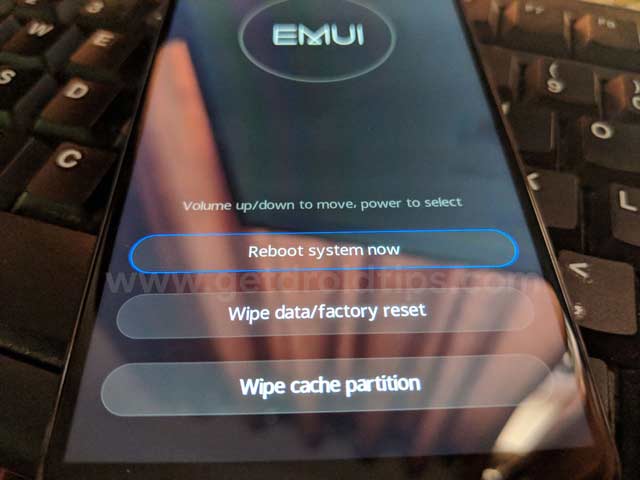
Here you can see EMUI screen with three options including reboot system now, wipe data/factory reset and wipe cache partition.
Step 5: Press volume down to move Wipe data/factory reset
Step 6: Press power button to select
You can see pop up message on screen: Confirm wipe for all user data? By default selected “No”.
Step 7: Press volume down button to move Wipe data/factory reset
Step 8: Press power button to select
Verification required screen view in your device. By default selected “No” option. If you are using Google account, you’ll need to enter your Google password to access your device after restoring factory settings in Huawei P20 Pro and P20 Oreo 8.1.
Step 9: Press volume down button to move Wipe data/factory reset
Step 10: Press power button to select
Here you can see Warning message: To avoid system error, please do not press and hold the power button.
Step 11: Wait until finish 100% process to factory reset Huawei P20 Pro and P20
Step 12: Press volume up button to move Reboot system now
Step 13: Press power button to select
Now wait until restart your Huawei P20 Pro and P20 device. Remove all your phone data and settings looks like buy new device. Now follow on screen instruction to set up your device settings.