

Huawei Push Kit is a part of the Huawei HMS (Huawei Mobile Services) growth/core kit that Improves targeting and responsiveness when engaging users. Now, the Huawei Push kit allows you/developer to create interactive push notifications, with custom buttons, which allow you to obtain in-depth insights into user behavior.
Huawei Push Kit interface has been updated on the console, to provide for one-stop notification configuration and preview, facilitating enhanced efficiency across the board.
Note: The compatible version is EMUI 10 or later, and requires versions 10.1.0.361 or later of the Push Service app.
One-Stop Configuration Boosts Operational Efficiency to New Heights
The company has now optimized the operating interface for HUAWEI Push Kit on the console to provide for highly-convenient, one-stop notification services. You can create a push notification, complete all relevant configurations, and send the notification to users – all on a single page.
Here’s the Huawei Push Kit console steps,
Click the Add notification button. On the displayed page, you can set the notification content, push scope, push time, and other parameters as required.
1. Set notification content.
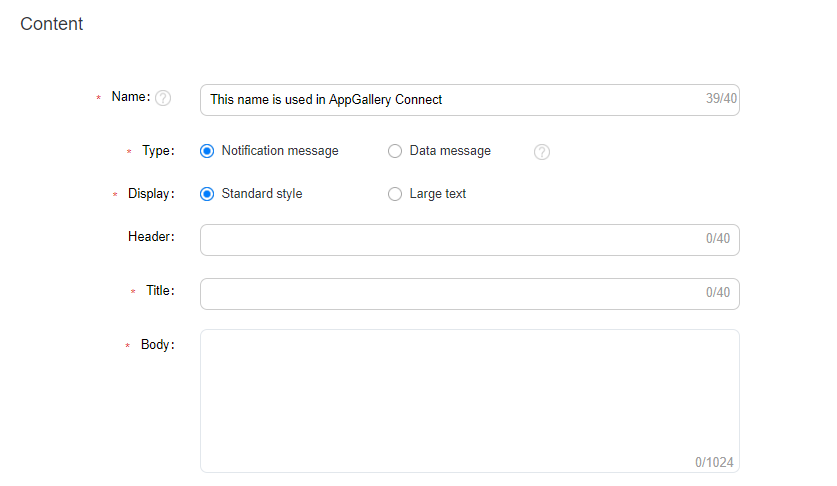

Type: Notification messages use a pre-defined format, which does not need to be processed by the app before the message is displayed. Data messages support custom formats, which do not need to be processed by the app before the message is displayed. In the steps below, we have used notification messages as an example.
Display: Select the standard style or the large text style as needed. You can enter your app name in the Header text box to make the message more recognizable.
Title and Body: Provide the message title and the corresponding body. An appealing title/body can help you attract users’ interest.
2. Add a custom notification button.
You can add one to three buttons and set an action corresponding to each button.
If you add an Open app button, you can set the page to be opened as the homepage, custom action page, or custom intent URI page.


If you add an Open web page button, you will need to provide the URL for the web page.


If you add a Share button, you will need to enter the text or link to be shared.


You can also add the Clear notification button, which enables users to clear the notification message.


While you are adding buttons, a preview of the buttons will display to the right, allowing you to check and optimize how the notification message is presented.
You can also set actions for notification messages, without having to define the custom buttons. When the user taps the message under this scenario, they can open the corresponding apps or web pages as desired.
3. Set the push scope.
HUAWEI Push Kit allows for three push scopes: Specified device, Audience, and Subscriber.


4. Set the push time.
You can set the push time based on the time zone. You can set different push frequencies, for example, one-off and periodic, depending on the nature of the notification.
After completing the preceding configuration, then click Submit. The notification message that you have configured will be delivered to the target users via Huawei’s efficient and highly-reliable push channels.
Huawei Mobile Services (HMS) Resources: