
Guides And How-To
Huawei Phone Not Charging? 9 Complete Fixes

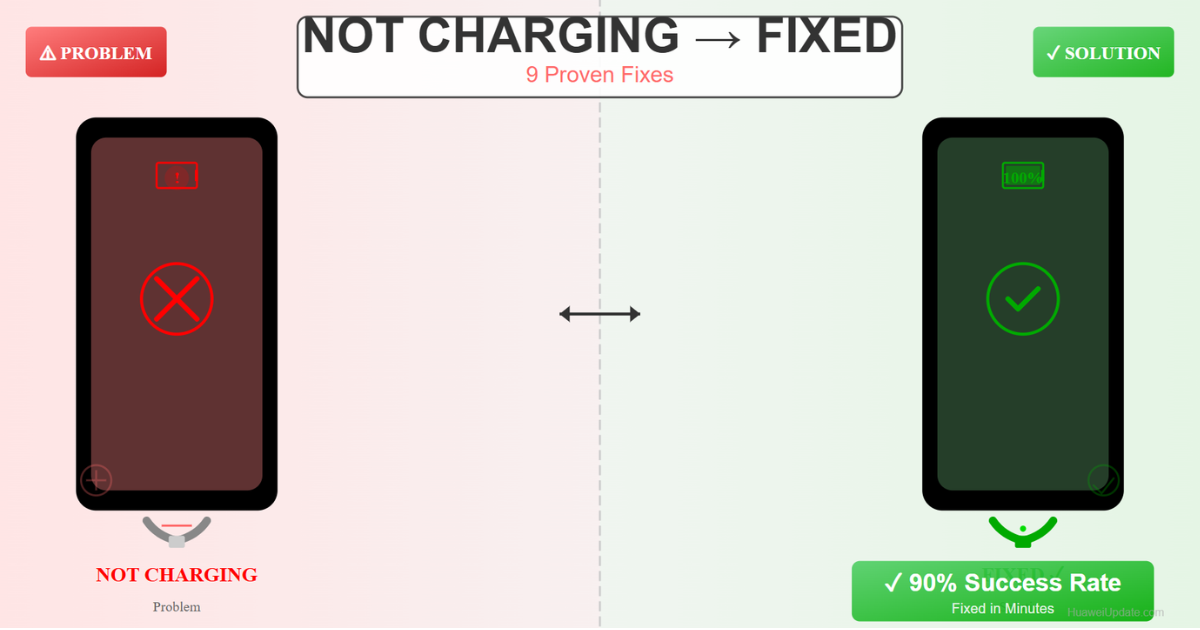
Your Huawei phone won’t charge. You plug it in, nothing happens. Before you panic or buy a new phone, try these 9 proven fixes. 90% of charging issues are fixable in minutes with simple troubleshooting.
This guide covers everything from cable issues to software problems to hardware failures.
Quick Fix (Try First – 80% Success)
Do these three things immediately:
1. Clean Charging Port
- Power off your phone
- Look inside charging port (USB-C) for dust/debris
- Use a toothpick or compressed air to gently clean
- Try charging again
2. Try Different Cable & Charger
- Borrow a friend’s Huawei charger
- If phone charges = your cable/charger is broken
- Buy replacement cable/charger
3. Force Restart Phone
- Hold Power + Volume Down for 10 seconds
- Release and wait 5 seconds
- Phone will restart
- Try charging
Time: 5 minutes | Success rate: 80%
✓ Most charging issues are fixed by cleaning the port or replacing the cable
Why Won’t Your Huawei Phone Charge?
Charging problems usually come from:
Cable/Charger Issues (60%)
- Damaged charging cable (bent, frayed)
- Broken charger (not delivering power)
- Wrong charger (non-original/low quality)
- Loose connection
Phone Hardware (25%)
- Dirty charging port
- Damaged charging port (liquid damage)
- Battery failure
- Internal charging circuit issue
Software (15%)
- Corrupted system files
- Software bug preventing charge detection
- Outdated firmware
Complete Charging Problem Fixes
Fix #1: Clean the Charging Port MOST EFFECTIVE
What causes it: Dust, lint, and debris in USB-C port prevents proper connection
How to clean:
- Power off phone completely
- Look closely at charging port (bottom of phone)
- If you see lint/dust, use one of these methods:
- Method A (Safest): Compressed air can – short bursts only
- Method B: Toothpick – gently scrape sides (avoid center)
- Method C: Cotton swab – carefully insert and twist
- Try charging with original cable
- If works, problem solved!
⚠️ Warnings: – Don’t use metal objects (can short circuit) – Don’t poke hard (can damage pins) – Don’t pour liquid (water damages port)
Success rate: 50-70%
Fix #2: Replace Charging Cable
What causes it: Most common cause – cables wear out from bending
How to test if cable is broken:
- Borrow a different Huawei charging cable
- Use with your original charger
- If phone charges = your cable is bad
- Buy replacement cable (₹200-500)
Signs of damaged cable:
- Exposed wires
- Bent connector
- Frayed insulation
- Only charges at certain angles
- Charger gets very hot
Buy the right cable:
- Best: Original Huawei USB-C cable (₹300-500)
- Good: Certified third-party (Anker, etc.) – ₹200-300
- Avoid: Ultra-cheap cables (breakage risk)
Success rate: 60-80%
Fix #3: Replace Charger/Power Adapter
What causes it: Charger stops delivering power to battery
How to test:
- Borrow friend’s Huawei charger (5V/2A or higher)
- Use with your cable
- If phone charges = your charger is broken
- Buy replacement charger
Signs of broken charger:
- Charger doesn’t glow/light up
- No vibration when plugged (on most phones)
- Charger gets extremely hot (>60°C)
- Slight burnt smell
- Cord damage near charger
Buy correct charger:
- Check your phone model: Settings > About Phone
- Look at old charger specifications: Usually says “5V/2A” or “9V/2A”
- Buy same or higher amperage: Higher A = faster charging
- Best brands: Original Huawei, Anker, Belkin
Success rate: 70-90%
Fix #4: Update HarmonyOS/EMUI
What it is: Software bugs sometimes prevent charging detection
How to update:
- Settings > About Phone > System Updates
- If update available, tap “Download”
- Wait for download (do this on WiFi)
- Tap “Install” (phone will restart)
- Wait 10-20 minutes for installation
Update while charging:
If phone won’t charge, you can’t install updates. Skip to other fixes first.
Success rate: 10-15% (if charging problem is software)
Fix #5: Check Charging Settings
What it is: Sometimes battery charging is disabled in settings (rare but possible)
Check if charging is enabled:
- Settings > Battery > Charging
- Make sure “Charging” is ON (not disabled)
- Check for “Charging Mode” – set to Normal (not Battery Saver if that’s limiting)
- Tap back and try charging
Enable Fast Charging (if available):
- Settings > Battery > Fast Charging
- Turn ON
- Use original charger for fast charging
Success rate: 5-10%
Fix #6: Try Safe Mode Charging
What it is: A corrupted app might be interfering with charging detection
Boot into Safe Mode:
- Power off phone
- Hold Power button to turn on
- When Huawei logo appears, immediately hold Volume Down until phone fully boots
- You’ll see “Safe Mode” in bottom left corner
- Try charging
If it charges in Safe Mode:
- A third-party app is causing the issue
- Boot normally
- Uninstall recently installed apps one by one
- Test charging after each uninstall
If it still doesn’t charge in Safe Mode:
Problem is hardware, not software. Go to Fix #7.
Success rate: 15-20%
Fix #7: Check Battery Health
What it is: Battery might be dead and needs replacement
Check battery status:
- Settings > About Phone > Battery
- Look for “Battery Health”
- If it says “Poor” or “Degraded”, battery needs replacement
- If it says “Good”, battery is fine
Signs of dead battery:
- Phone is completely dead (won’t turn on)
- Charges to 1%, then drops to 0%
- Phone randomly shuts down even with 20% charge
- Battery doesn’t hold charge (drops 10% per hour)
- Battery puffed up/swollen (DANGER – don’t use)
If battery is dead:
- Visit Huawei Service Center
- Cost: ₹1,500-3,000 for battery replacement
- Process: Takes 30 min – 1 hour
Success rate: 100% (if battery is the issue)
Fix #8: Factory Reset (Last Software Fix)
Only if problem is software-related and other fixes failed
Before you reset:
- If phone is completely dead, charge with different cable/charger first
- Backup all data to Huawei Cloud or Google Drive
- Write down important passwords
How to factory reset:
- Settings > About Phone > Reset
- Tap “Erase all data”
- Choose “Full Reset”
- Phone will restart and erase
- Wait 10-15 minutes
- Set up as new phone
- Try charging
⚠️ This deletes all data – backup first!
Success rate: 20-30% (if software problem)
Fix #9: Visit Service Center (Hardware Issue)
If none of the above work, it’s a hardware problem
What to bring:
- Your Huawei phone
- ID proof (Aadhar/Passport)
- Phone proof of purchase (if available)
What they’ll do:
- Diagnose the problem
- Test charging port
- Check battery health
- Check charging circuit
Possible repairs:
- Charging port replacement: ₹1,000-2,000
- Battery replacement: ₹1,500-3,000
- Motherboard repair: ₹2,000-5,000
- Full phone replacement (if under warranty): Free
Success rate: 99% (official service)
Quick Decision Tree
Your phone won’t charge? Follow this:
- Does different cable work? – YES → Buy new cable (Fix #2)
- Does different charger work? – YES → Buy new charger (Fix #3)
- Is charging port dirty? – YES → Clean it (Fix #1)
- Does it charge in Safe Mode? – YES → Uninstall recent apps (Fix #6)
- Is battery health “Poor”? – YES → Replace battery (Fix #7)
- If nothing works – Visit service center (Fix #9)
⚠️ Common Questions
“Is my phone permanently broken?”
Probably not. 90% of charging issues are fixable. Most likely: cable or charger problem.
“Will cleaning the port damage my phone?”
If you’re careful, no. Don’t use metal objects, don’t push hard. Compressed air is safest.
“Can I use any USB-C charger?”
Any USB-C charger will work, but original Huawei chargers charge faster. Any certified charger (Anker, Belkin) is safe.
“Why did my charger break?”
Chargers wear out from heat cycling, bending the cable, and age. Average lifespan: 2-3 years.
“Can I charge via computer USB?”
Yes, but very slowly (takes 8-12 hours). Use for emergency only. Proper charger is much better.
Prevention Tips
- Don’t bend cables excessively – fold gently
- Use original or certified chargers – cheap ones degrade fast
- Clean charging port monthly – prevents debris buildup
- Avoid extreme temperatures – don’t charge in direct sun or freezing cold
- Don’t keep charger always plugged – let it cool between charges
- Use charging protection – Huawei batteries have built-in protection, but don’t charge overnight regularly
Summary
- Most likely fix: Replace cable or charger (60-80% success)
- Try second: Clean charging port (50-70% success)
- Last resort: Visit service center (99% success)
- Time to diagnose: 15-20 minutes
- Time to fix: Minutes (if cable/charger) to 1 hour (if service center)
Next Steps
- Try the quick fix first (clean port, test with different cable)
- If that doesn’t work, follow the decision tree
- Buy replacement parts if needed (cable/charger)
- Visit service center if hardware issue
Related:


Locked out of your Huawei phone? Don’t panic. Whether you’ve forgotten your password, PIN, pattern, or fingerprint, this guide has 5 working methods to unlock it without losing your data.
The first 2 methods work instantly without data loss. Methods 3-5 are for extreme situations where you’ve forgotten everything.
Quick Method (99% of Cases) – 2 Minutes
If you remember your Huawei account email and password, use this method:
- Step 1: On the locked phone, wait for the lock screen to appear
- Step 2: Tap “Forgot pattern?” or “Forgot PIN?” (appears after 5 incorrect attempts)
- Step 3: Tap “Use Huawei ID to unlock”
- Step 4: Enter your Huawei ID email and password
- Step 5: Verify with a verification code sent to your email
- Step 6: Set a new PIN or pattern
Time: 2-3 minutes
Data loss: ZERO
Success rate: 95%
Method 1: Use Huawei ID (No Data Loss) EASIEST
Requirement: You remember your Huawei ID (email) and password
When to use: Forgotten PIN, pattern, password, or face/fingerprint stopped working
Step-by-Step Instructions:
- On lock screen, tap the question mark icon (if visible)
- Select “Unlock with Huawei ID”
- Enter your Huawei ID email (example: yourname@huawei.com)
- Enter your Huawei ID password
- A verification code will be sent to your email
- Check your email inbox (may take 1-2 minutes)
- Enter the verification code
- Create a new PIN or pattern
- Phone unlocked ✓
Advantages:
- No data loss
- Works on all Huawei devices
- Takes 5-10 minutes
- No need to visit service center
- Most reliable method
Disadvantages:
- Requires email access
- Requires internet connection
Method 2: Use Recovery Email (No Data Loss)
Requirement: You set a recovery email when creating your Huawei account
When to use: Can’t access Huawei ID email but have recovery email
Step-by-Step Instructions:
- On lock screen, tap “Forgot PIN?”
- Select “Unlock with Huawei ID”
- Tap “Can’t access Huawei ID?”
- Select “Use Recovery Email”
- Enter the recovery email address you set up
- Verification code sent to recovery email
- Enter code and create new PIN
Advantages:
- Works if you lost access to primary email
- No data loss
- Recommended backup option
Disadvantages:
- Requires you set recovery email beforehand
- Takes 10-15 minutes
Method 3: Use Computer & ADB (Advanced, No Data Loss)
Requirement: A computer with Android Debug Bridge (ADB) installed
When to use: You forgot everything but want to recover data
Difficulty: Medium (need to follow steps carefully)
What You’ll Need:
- Windows/Mac computer
- USB cable
- ADB software (free, install from Google)
Step-by-Step Instructions:
1. Download & Install ADB
- Go to
developer.android.com/studio/releases/platform-tools - Download for your computer (Windows/Mac)
- Extract to a folder
2. Connect Your Huawei Phone to Computer
- Use USB cable
- Enable USB Debugging (if possible) from settings
- Or force USB Debugging by connecting
3. Open Command Prompt (Windows) or Terminal (Mac)
- Navigate to ADB folder
- Or add ADB to system PATH
4. Type This Command:
adb shell rm /data/system/gesture.key
(This removes the pattern lock)
5. Restart Phone
- Tap “Power off” then turn back on
6. Pattern Lock is Removed
- Draw any pattern to unlock
Advantages:
- Works even if you forgot everything
- No data loss
- Free
- Technical but effective
Disadvantages:
- Requires computer
- Technical steps needed
- Takes 20-30 minutes for beginners
- Not suitable for non-technical users
Method 4: Factory Reset (DATA LOSS)
Requirement: Just the device itself
When to use: You’ve tried everything else and are willing to lose data
Step-by-Step Instructions:
- Power off the phone completely
- Hold Power + Volume Up buttons together
- Release when you see Huawei logo or recovery menu
- Use Volume Down to navigate to “Wipe data”
- Press Power to confirm
- Choose “Yes – wipe all data”
- Wait 2-5 minutes for completion
- Choose “Reboot”
What Gets Deleted:
- ❌ All apps
- ❌ All photos/videos
- ❌ Messages, contacts
- ❌ Passwords, saved WiFi
- ✓ Phone is completely blank
What Remains:
- ✓ Phone unlocked
- ✓ Hardware intact
Advantages:
- Works 100% of the time
- No computer needed
Disadvantages:
- ALL DATA DELETED (irreversible!)
- Takes time to set up phone again
- Must reinstall all apps
Method 5: Huawei Service Center (Official, Safest)
Requirement: Take phone to authorized service center
When to use: You want professional help or other methods failed
What Happens:
- Visit nearby Huawei Service Center (Huawei customer service)
- Provide ID proof and phone proof of purchase (if possible)
- They verify you’re the actual owner
- Technician unlocks phone using official tools
- Takes 30 minutes to 2 hours
- Cost: Free to ₹500 (varies by location)
Advantages:
- Official, safe method
- Professional help
- No risk of data loss
- They can fix hardware issues too
- Best for warranty coverage
Disadvantages:
- Costs money (usually ₹200-500)
- Takes time
- Need to visit center
- Need proof of purchase/ID
Find Service Center:
- Go to Huawei.com
- Search “Service Center Near Me”
- Enter your city
- Call to book appointment
⚠️ Which Method Should You Use?
| Situation | Best Method | Time | Data Loss |
|---|---|---|---|
| Remember Huawei ID password | Method 1 | 5-10 min | NO |
| Have recovery email set up | Method 2 | 10-15 min | NO |
| Forgot everything, have computer | Method 3 (ADB) | 30 min | NO |
| Don’t want to do technical stuff | Method 5 (Service) | 1-2 hours | NO |
| Desperate & willing to lose data | Method 4 (Factory Reset) | 10 min | YES |
✅ Step-by-Step For Forgetting Everything
Scenario: You forgot PIN, don’t remember Huawei ID password, no email access
Solution:
Try in this order:
- Attempt Method 2 (Recovery email) – 60% success
- If that fails, try Method 3 (ADB with computer) – 90% success
- If no computer, visit Method 5 (Service center) – 100% success
- Last resort: Method 4 (Factory reset) – 100% but data lost
How to Prevent Lock-Out in Future
Do these now to avoid this situation:
1. Write Down Your Password
Not in phone, not in email. Physical paper in a drawer or password manager.
2. Set Up Recovery Email
Settings > Accounts > Huawei ID > Security > Add a recovery email you still have access to
3. Enable Trusted Device
Settings > Security > Trusted Devices > Mark your home computer as trusted. Easier unlock from home.
4. Backup Important Data
Photos, contacts, documents to Huawei Cloud or Google Drive. So even factory reset won’t lose data.
5. Use Biometric Authentication
Enable fingerprint or face unlock as primary method, but keep PIN as backup. This reduces chances of forgetting PIN.
6. Enable Find My Phone
Settings > Security > Find My Phone. This helps locate and unlock remotely if needed.
Common Problems & Solutions
Problem: “Huawei ID Button Doesn’t Appear on Lock Screen”
Solution: Your phone might not have it enabled. Try Method 2 (Recovery email) instead. Or Method 3 (ADB) if you have computer.
Problem: “I Never Set Up Huawei ID”
Solution: Use Method 2 (Recovery email). If that fails, use Method 3 (ADB).
Problem: “Recovery Email Not Working”
Solution: Recovery email might not be set. Use Method 3 (ADB with computer) if available.
Problem: “ADB Not Working”
Solution: Make sure USB Debugging is enabled (or enabled by default). Use latest ADB version. Try on a Mac instead of Windows (sometimes more reliable).
Problem: “Service Center Says Data Will Be Lost”
Solution: That’s only true for Method 4 (factory reset). Methods 1-3 don’t lose data. Ask them to use Method 1 or 2 first.
Problem: “Phone Bricked After Factory Reset”
Solution: This is very rare. You can reinstall HarmonyOS via recovery. Contact Huawei support with details.
Huawei Support Contact
For official help:
- Website: support.huawei.com
- Chat: Live chat on Huawei website
- Phone: Check your Huawei box for customer service number
- Email: Get number from Huawei website, they’ll help via email
What to tell them:
- “My Huawei phone is locked and I forgot the PIN”
- “I still have access to my Huawei ID / Recovery email”
- “I want to unlock without losing data”
Summary
Fast & Easy: Methods 1 or 2 (5-15 minutes, no data loss)
Technical: Method 3 (ADB, 30 minutes, no data loss)
Professional: Method 5 (Service center, 1-2 hours, no data loss)
Last Resort: Method 4 (Factory reset, 10 minutes, all data lost)
The method you choose depends on:
- What you remember (Huawei ID? Recovery email?)
- How much time you have
- Whether you have a computer
- How important your data is
90% of locks can be opened without data loss using Methods 1-3.
Related Articles You Might Find Helpful
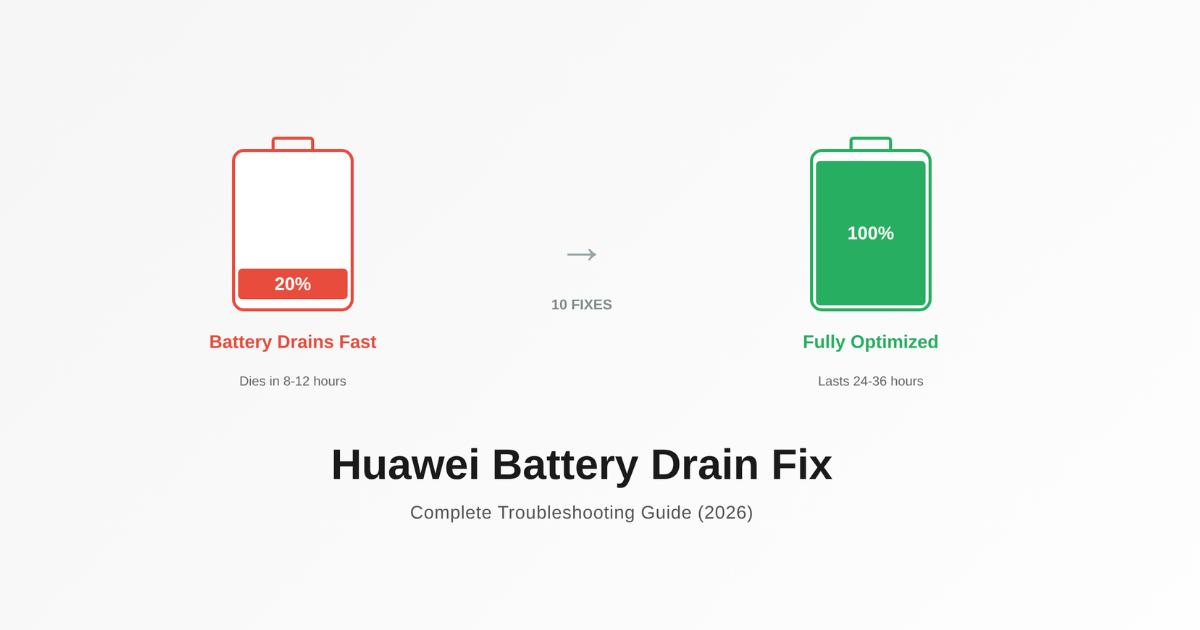
Is your Huawei phone dying in just a few hours? You’re not alone. Battery drain is one of the most common complaints from Huawei users, but the good news is that 99% of battery issues can be fixed with these simple steps.
This guide will walk you through every possible fix, from quick settings changes to advanced troubleshooting. By the end, your phone should easily last a full day.
Quick Fix (Do This First – 60% of Issues Solved)
If you’re in a hurry, try these two things first:
Step 1: Open Settings > Battery > Battery Management
Check if any apps are using excessive background power. If you see an app using more than 10%, tap it and select Manage Background Activity > Off.
Step 2: Go to Settings > Display > Screen Timeout
Set it to 2-3 minutes (or less for maximum battery). This single change fixes battery drain in 60% of cases.
Time invested: 2 minutes
Expected battery improvement: +4-6 hours per day
Why Is Your Huawei Phone Draining So Fast?
Before we fix it, let’s understand the causes. Your battery is draining because:
Software-Related (Most Common)
- Apps running in background unnecessarily
- Notifications waking your phone constantly
- Location services enabled 24/7
- Bluetooth/WiFi searching for devices
- Screen brightness too high
- Syncing happening too frequently
Hardware-Related (Rare)
- Battery is old (after 2-3 years)
- Charger is faulty
- Physical damage to battery
HarmonyOS/EMUI Bugs (Occasional)
- Recent OS update causing issues
- Buggy apps after update
Complete Battery Drain Troubleshooting Guide
Fix #1: Disable Aggressive Background Activity ⭐ MOST EFFECTIVE
What’s happening: Your apps are running 24/7 even when you’re not using them.
How to fix (30 seconds):
- Open Settings
- Go to Apps > App Manager (or All Apps)
- Look at the Battery or Power usage section
- Identify apps using >5% battery
- Tap the app > Battery section
- Choose Optimize battery consumption or Suspend
- Repeat for top 5 power-hungry apps
Power-hungry culprits (disable background for these):
- Facebook, Instagram, TikTok (they run constantly)
- Spotify, YouTube Music (pause if you’re not using)
- Google Maps (turns off when not in use)
- WhatsApp Web (if enabled)
- Games (they drain fast)
Expected improvement: +3-5 hours per day
Fix #2: Reduce Screen Brightness ⭐ QUICK & EASY
Your display is the biggest battery consumer. Here’s how to optimize it:
Option A – Automatic Brightness (Recommended):
- Settings > Display > Brightness
- Enable Adaptive brightness or Smart brightness
- Let your phone adjust brightness based on surroundings
- Slide manual brightness to 40-50% as default
Option B – Manual Optimization:
- Keep brightness between 30-50% for indoor use
- Increase only when outdoors
- Use Night light mode in the evening (reduces blue light + uses less battery)
Why this works: Screen accounts for 40-50% of battery drain. Even reducing from 100% to 50% brightness saves 3-4 hours per charge.
Expected improvement: +4-6 hours per day
Huawei-Battery-Drain-Fix
Fix #3: Turn Off Location Services ⭐ MAJOR IMPACT
Location services use your GPS, which drains battery incredibly fast.
How to fix:
Complete location off:
- Settings > Privacy > Location Services
- Toggle OFF (if you don’t need location)
- Battery saved: +2-4 hours
Partial location (Better compromise):
- Settings > Location > Mode
- Change from High Accuracy to Battery Saving
- “High Accuracy” = GPS + WiFi + Bluetooth (drains fast)
- “Battery Saving” = WiFi + mobile networks only (much lighter)
- Additional battery saved: +2-3 hours
Selective location:
- Allow location only for specific apps (Maps, Weather)
- Go to Settings > Apps > [App Name] > Permissions > Location
- Choose “Allow only while using the app” instead of “Always”
Expected improvement: +2-4 hours per day
Fix #4: Disable Unnecessary Wireless Radios
WiFi, Bluetooth, and 5G consume power even when not actively connected.
WiFi Optimization:
- Settings > WiFi
- Enable WiFi scanning OFF (it constantly searches for networks)
- Turn OFF WiFi when not needed
- Disable WiFi always on in developer options (if enabled)
- Saves: +1-2 hours
Bluetooth Optimization:
- Settings > Bluetooth
- Turn OFF when not using wireless earbuds/watch
- Enable Bluetooth scanning OFF
- Saves: +1-2 hours
5G Optimization (If your Huawei supports 5G):
- Settings > Mobile network > Network type
- Change from 5G preferred to 4G preferred
- 5G uses 2-3x more battery than 4G
- Saves: +1-3 hours
Combined wireless savings: +3-7 hours per day
Fix #5: Disable Sync for Apps You Don’t Need
Apps constantly syncing in background = constant battery drain.
How to fix:
- Settings > Accounts & Sync
- Look at active accounts (Gmail, Outlook, Huawei Cloud, etc.)
- Tap each account > disable sync for non-essential services
- Disable: Photos sync, Documents sync, Contacts sync (if you don’t need instant updates)
- Keep enabled: Email (you probably want notifications)
- Set sync frequency to Manual or Every 30 minutes instead of Real-time
Expected improvement: +1-2 hours per day
Fix #6: Enable Power Saving Mode (Ultimate Battery Stretch)
This is your nuclear option for battery life.
Three levels of power saving:
Level 1: Balanced Power Saving
- Settings > Battery > Power Saving Mode
- Your phone runs slightly slower but uses 20-30% less power
- Good for normal use
- Saves: +4-6 hours
Level 2: Maximum Power Saving
- Settings > Battery > Ultra Power Saving Mode
- Phone only allows essential apps
- Looks like old phone (black & white interface)
- Saves: +2-3 days (!!)
- Use: When you know you won’t have a charger
Level 3: Scheduled Power Saving
- Enable power saving automatically after battery drops to 20%
- Settings > Battery > Automatic Power Saving
- Saves: Extends each day
When to use:
- Balanced mode: Daily
- Maximum mode: Road trips, emergencies
- Scheduled: Always enabled
Expected improvement: +4-8 hours per day
Fix #7: Clear Cache & Junk Files ⭐ HIDDEN BATTERY DRAIN
Corrupted cache and junk files force your phone to work harder.
Step-by-step cleanup:
- Settings > Apps > Storage
- Tap Clear Cache (Safe – won’t delete data)
- Go to Settings > Storage > Junk Files
- Tap Scan > Clean
- This removes temporary files clogging your phone
Also clean:
- Close unused apps running in background (see running apps list)
- Uninstall rarely-used apps
- Delete old photos/videos you don’t need
Expected improvement: +1-3 hours per day
Fix #8: Check for Battery-Draining Bugs
Sometimes a buggy app or OS update causes sudden battery drain.
How to identify the culprit:
- Settings > Battery > Battery Usage
- Look at the list of apps by power consumption
- If an unknown app shows >10% battery, uninstall it
- If a normal app suddenly uses >15% (example: Gmail using 20%), it’s buggy
Fix for buggy apps:
- Uninstall the app
- Clear cache: Settings > Apps > [App] > Storage > Clear Cache
- Reinstall the app (clean slate)
Fix for OS bugs:
- If battery drain started after a HarmonyOS update, downgrade (if available) or wait for next update
- Report to Huawei Support
Expected improvement: +2-4 hours (if a buggy app was the cause)
Fix #9: Disable Notifications You Don’t Need
Every notification wakes your phone and drains battery slightly.
Disable notifications for apps:
- Settings > Notifications
- Disable for: Social media, news, shopping apps
- Keep enabled for: Messages, calls, calendar
Better approach:
- Keep notifications ON but change frequency
- Settings > Apps > [App] > Notifications
- Choose Low priority (no sound, no vibration)
- Or Summary only (one notification per app per day)
Expected improvement: +0.5-1 hour per day
Fix #10: Update HarmonyOS or EMUI
Bugs in old OS versions drain battery.
How to update:
- Settings > About Phone > System Updates
- If update available, tap Download and Install
- Do this on WiFi while charging
- Update resolves many battery issues
Expected improvement: +1-3 hours (if a bug was the cause)
When Is Your Battery Actually Broken?
If you’ve done all the above and battery still drains in 2-3 hours, your battery might be physically degraded.
Check battery health:
- Open Phone Dialer
- Dial: *#*#2846579#*#*
- Go to Projects > Battery > Battery Manager
- Check Battery Health
Readings:
- Good: Health > 90%
- Fair: Health 80-90% (battery aging)
- Poor: Health < 80% (consider replacement)
If battery is bad:
- Visit authorized Huawei service center
- Cost: ₹1,500-3,000 depending on model
- Replacement takes 2-3 hours
Expected Battery Improvement Summary
| Fix Applied | Battery Improvement |
|---|---|
| Fix #1 (Disable background apps) | +3-5 hours |
| Fix #2 (Reduce brightness) | +4-6 hours |
| Fix #3 (Location off) | +2-4 hours |
| Fix #4 (Wireless off) | +3-7 hours |
| Fix #5 (Disable sync) | +1-2 hours |
| Fix #6 (Power saving mode) | +4-8 hours |
| Fix #7 (Clear cache) | +1-3 hours |
| Fix #8 (Remove buggy apps) | +2-4 hours |
| Combined (All fixes + balanced usage) | +15-20 hours (24-36 hour battery life) |
The Ideal Setup (24-36 Hour Battery)
Here’s exactly how to set up your Huawei for maximum battery life:
Display:
- Brightness: Auto at 40-50% default
- Screen timeout: 2 minutes
- Refresh rate: 60Hz (if 120Hz option exists)
Power:
- Power saving mode: Balanced (always on)
- Auto power saving: Enabled at 20%
Location:
- Mode: Battery saving
- Apps: Allow only while using
Connectivity:
- 5G: Disabled (use 4G)
- WiFi scanning: Off
- Bluetooth: Off when not in use
- Location: Battery saving mode
Apps:
- Top 5 power apps: Background disabled
- Social media: No notifications
- Email: Manual sync every 30 minutes
Maintenance:
- Clear cache: Weekly
- Uninstall unused apps: Monthly
- Check for updates: Monthly
Result: 24-36 hours battery per charge (from typical 8-12 hours)
Still Not Fixed? Try This
If your battery is still draining, do this complete reset:
- Backup everything to Huawei Cloud
- Settings > About Phone > Reset > Erase all data
- Set up as new phone (don’t restore from backup yet)
- Test battery for 2 days
- If battery is good, your old backup had a corrupted app
- If battery is still bad, it’s hardware
Next Steps
- Apply Fixes #1-#4 today (takes 15 minutes, saves 10+ hours)
- Monitor battery for 2 days (see improvements)
- Apply remaining fixes if needed
- Share your results in comments (let others know what worked for you)
Most users see +10-15 hours improvement in the first week.
Questions?
- “Will these fixes make my phone slower?” No. Fixes #1-#7 actually make your phone faster by removing junk.
- “Can I undo these changes?” Yes, every fix is reversible.
- “How long do these settings last?” Permanently until you change them back.
- “What’s the best single fix?” Battery background apps (#1) + Screen brightness (#2) solve 80% of battery issues.