



At the Huawei Developer Conference (HDC 2021) in 2021, Huawei launched the local emulator for the first time with the release of DevEco Studio 3.0 Beta 1, which supports the simulated mobile phone category.
Huawei introduces the version evolution of the HarmonyOS local emulator and shared a tutorial about how to use the HarmonyOS local emulator.
1. The version evolution of the local emulator
On December 31, 2021, after a version of iterative optimization, the local simulator released with DevEco Studio 3.0 Beta2 added a new category of simulators for smart watches and smart screens.
The local simulator has customized its unique characteristics according to the characteristics of smart watches and smart screens.
Smart watch: Supports analog data injection of heart rate and steps, and supports the simulation of rotating the crown button.

Smart screen: supports the simulation of remote control.

Through the above introduction to the local emulator, it is not difficult to see that the local emulator has the following advantages:
It runs directly on the user’s local computer, does not require login authorization, has zero delay, and is not limited by the duration of use, and has the same performance as the real machine.
Provides a variety of general device simulations such as audio, battery, location, etc., providing developers with a running environment that approximates the real machine.
Provide product-specific simulations for Huawei devices, such as the rotation and pressing function keys of smart watches, and the remote control simulation of smart screens.
Supports Java, JS, C / C++ single-language debugging and JS+Java cross-language debugging capabilities, helping developers to debug applications more conveniently and efficiently.
2. Preparations before use
After understanding the local emulator, the following will focus on explaining how to use the local emulator. Before using the local emulator, you need to do the following preparations:
1. The local emulator is created and run on the local computer. Make sure that the local computer meets the following resource requirements:
Windows system: 8GB and above
macOS system: 8GB and above
Note: Running a local emulator on a virtual machine system is not supported, for example on an Ubuntu system, by installing a Windows virtual machine and then using the Windows system to install and run the emulator.
2. Check the version of DevEco Studio:
DevEco Studio V3.0 Beta1 and later versions only support local emulators. Currently, DevEco Studio V3.0 Beta2 is recommended.
3. Before using the local emulator, you need to install the corresponding image package. The specific operations are as follows:
(1) Open DevEco Studio and select “Files > Settings” (for macOS, select “DevEco Studio > Preferences”).
(2) As shown in Figure 3, on the “SDK Manager > HarmonyOS Legacy SDK” tab, select the image package under “Platforms”. Different image packages correspond to different device types. The System-image-phone image package corresponds to mobile phones, the System-image-tv image package corresponds to smart screens, and the System-image-wearable image package corresponds to smart watches.

(3) Click “Apply” to install.
4. Install the local emulator.
Select “Tools> Device Manager” in the menu bar, enter the interface shown in Figure 4, and click “Install” to install the local emulator.

3. Create and use a local emulator
After completing the above preparations, the next step is the focus of this article, teaching you how to create and use a local emulator.
1. (Optional) Customize the local emulator file storage path.
The default storage path for local emulator files is:
C:\Users\username\AppData\Local\Huawei\HarmonyOSEmulator\deployed . If the space on the C drive is tight, you can add a system environment variable HarmonyOS_HVD_HOME to customize the storage path to point to a directory with ample space.
2. Create a local emulator.
(1) Open DevEco Studio and select “Tools > Device Manager”. As shown in Figure 3, in the Local Emulator tab, click the New Emulator button in the lower right corner to start creating a local emulator.
(2) Select a device to create a local emulator.
As shown in Figure 4, DevEco Studio provides three devices, Huawei_Phone, Huawei_TV and Huawei_Wearable by default, corresponding to mobile phones, smart screens and smart watches respectively. According to the characteristics of Huawei devices, DevEco Studio presets parameters such as size and resolution for these three devices.

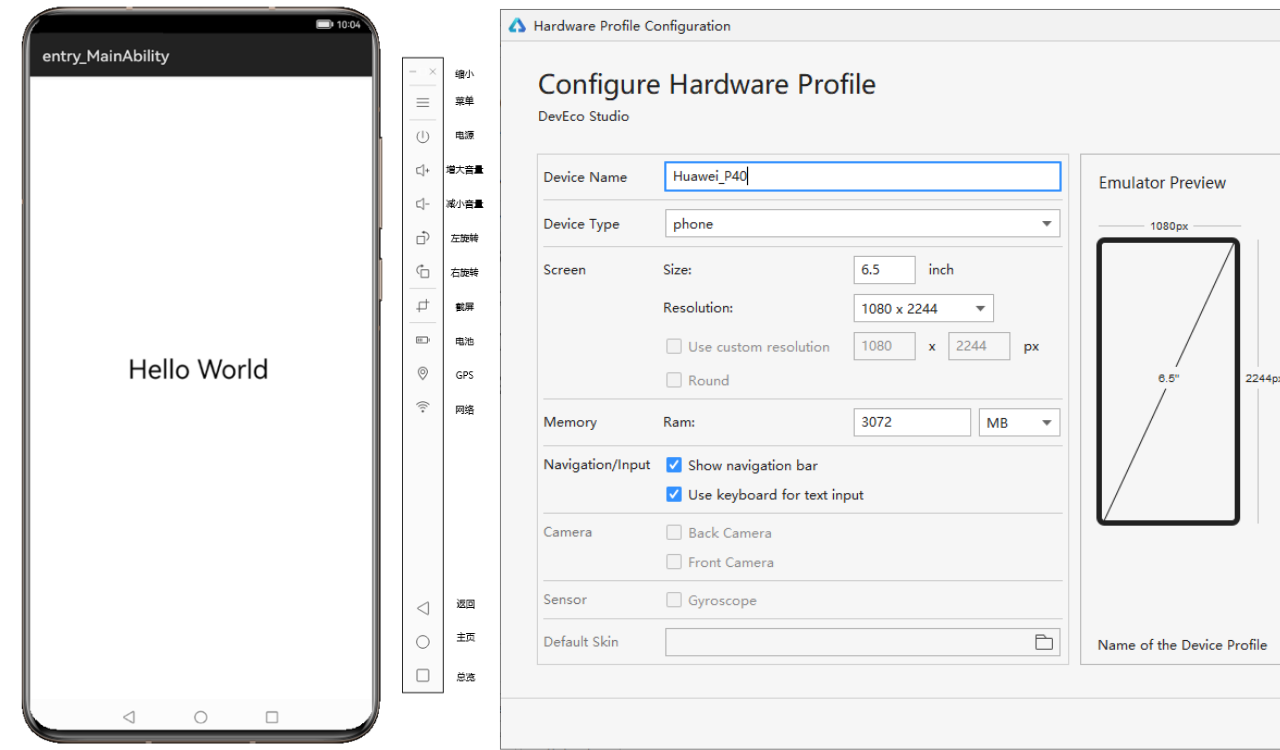
Developers can click the clone icon after New Hardware or Huawei_Phone to create a new mobile device and customize the device’s name, size, resolution, memory and other parameters.

The developer selects a device from the default three devices or the created mobile device to create a local emulator.
(3) After selecting the device, click Next to see the image information of the local emulator.
(4) Click Next again to check the configuration information of the local emulator, and modify the configuration information if necessary. After confirmation, click Finish to complete the creation of the local emulator.
After the creation is successful, you can see the newly created local emulator on the Local Emulator tab, as shown in Figure 8.
3. Run the local emulator.
(1) On the Local Emulator tab, click to start the local emulator.
(2) Click the button in the DevEco Studio toolbar to run the project, or use the default shortcut key Shift+F10 (Control+R for Mac) to run the project.
(3) DevEco Studio will start the compilation and construction of the application, and the application can be run on the local simulator after completion. Taking the mobile phone device as an example, the operation effect.

The mobile phone local simulator shown in Figure 8, in addition to being directly operated on the mobile phone screen like a real phone, the toolbar on the right provides convenient operation and rich data injection capabilities, including: volume adjustment, battery simulation, GPS simulation, Network simulation, virtual sensor simulation, etc.
The local simulator currently supports three device types: mobile phone, smart watch and smart screen. Figure 11 shows the same set of codes running on three devices: smart watch, mobile phone and smart screen at the same time.
4. Conclusion
This issue introduces the use of the local simulator, have you mastered it? Welcome to use and explore more rich features of the local emulator~
In the process of using the local emulator, if you encounter any problems, please refer to the FAQ: Local Emulator >>
If the problem is still not resolved, you can provide feedback through the Huawei Developer Forum .
(Via)