



HU
No Result
View All Result
  • Home
  • HarmonyOS
    • HarmonyOS History
  • EMUI Updates
    • EMUI History
  • News
    Huawei Mate 80 Pro

    Huawei Mate 90 Hardware Upgrades & INSPIRE 2026 Cloud News

    MTN Zambia and Huawei

    MTN Zambia and Huawei, have teamed up to fix a big problem

    Huawei & Angola Partner

    Huawei & Angola Partner for Smart Grid Transformation & Green Energy

    Huawei Mate 90 news

    Huawei Mate 90 Series Sales Date: Flagship Timeline Revealed Early

    Huawei Nova 16 Ultra

    Huawei Nova 16 Ultra launched with 200MP camera and 7000mAh battery

    Huawei Maextro S800 ultra

    Huawei Maextro S800 ultra luxury sedan outsells Mercedes Maybach in China

    Huawei Keyrus

    Huawei partners with Keyrus to scale data and AI tools in global markets

    Huawei Logo Image - Credit Unsplash

    Huawei Ascend chips reach major milestone in new DeepSeek AI update

    Huawei Gartner 2026 image

    Huawei Named Leader in 2026 Gartner Wired and Wireless LAN Infrastructure Magic Quadrant

    Trending Tags

    • Mate 50
    • P40
  • Send A Tip
  • Home
  • HarmonyOS
    • HarmonyOS History
  • EMUI Updates
    • EMUI History
  • News
    Huawei Mate 80 Pro

    Huawei Mate 90 Hardware Upgrades & INSPIRE 2026 Cloud News

    MTN Zambia and Huawei

    MTN Zambia and Huawei, have teamed up to fix a big problem

    Huawei & Angola Partner

    Huawei & Angola Partner for Smart Grid Transformation & Green Energy

    Huawei Mate 90 news

    Huawei Mate 90 Series Sales Date: Flagship Timeline Revealed Early

    Huawei Nova 16 Ultra

    Huawei Nova 16 Ultra launched with 200MP camera and 7000mAh battery

    Huawei Maextro S800 ultra

    Huawei Maextro S800 ultra luxury sedan outsells Mercedes Maybach in China

    Huawei Keyrus

    Huawei partners with Keyrus to scale data and AI tools in global markets

    Huawei Logo Image - Credit Unsplash

    Huawei Ascend chips reach major milestone in new DeepSeek AI update

    Huawei Gartner 2026 image

    Huawei Named Leader in 2026 Gartner Wired and Wireless LAN Infrastructure Magic Quadrant

    Trending Tags

    • Mate 50
    • P40
  • Send A Tip
No Result
View All Result
HUpdate
No Result
View All Result
Home Tips And Tricks

Pairing Fails when connecting Huawei Watch GT 3 to My iPhone

Min by Min
June 25, 2022
in Tips And Tricks
0
Pairing Fails when connecting Huawei Watch GT 3 to My iPhone

Pairing Fails when connecting Huawei Watch GT 3 to My iPhone

188
SHARES
2.4k
VIEWS
Share on FacebookShare on Twitter

In this article, we will check if you ever encountered any pairing and connection issues when using your HUAWEI WATCH GT 3 with your iPhone?

The Bluetooth connection capabilities in the iOS system differ slightly from that of the Android system. Android phones connect to the watch via the single Bluetooth Basic Rate (BR) channel, which is responsible for most basic functions, such as voice calling and data transmission.

READ ALSO

Huawei, IUCN, and Global partners highlight Nature Protection’s latest technology

Fix a Broken Charger Port on your Smartphone

iPhones, on the other hand, connect to the watch via the BR and Bluetooth Low Energy (BLE) channels, of which BR is dedicated to voice calls, and BLE is dedicated to data transmission.

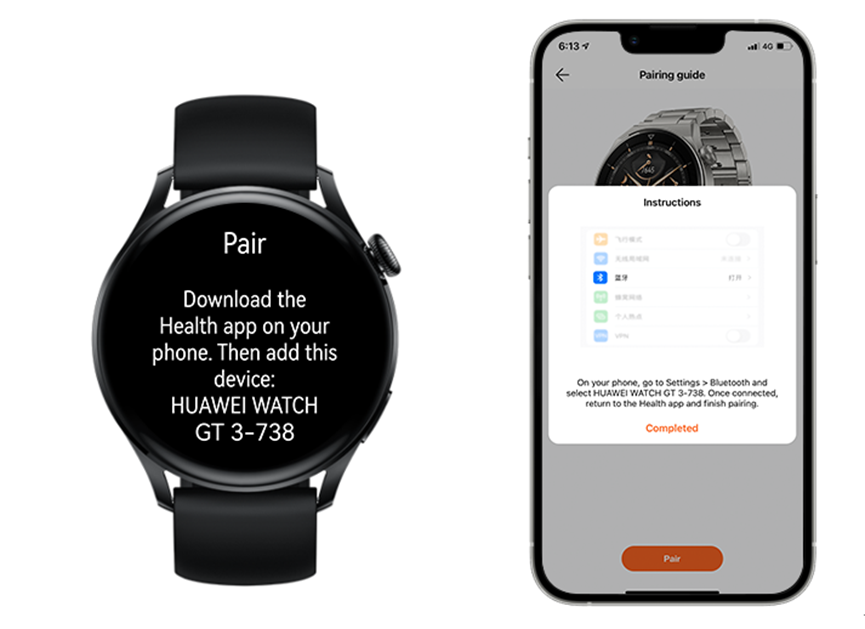
Connecting the HUAWEI WATCH GT 3 to an iPhone for the first time:

1. The watch is powered on and Bluetooth is enabled.

2. Follow the onscreen instructions to download the HUAWEI Health app from Apple Store.

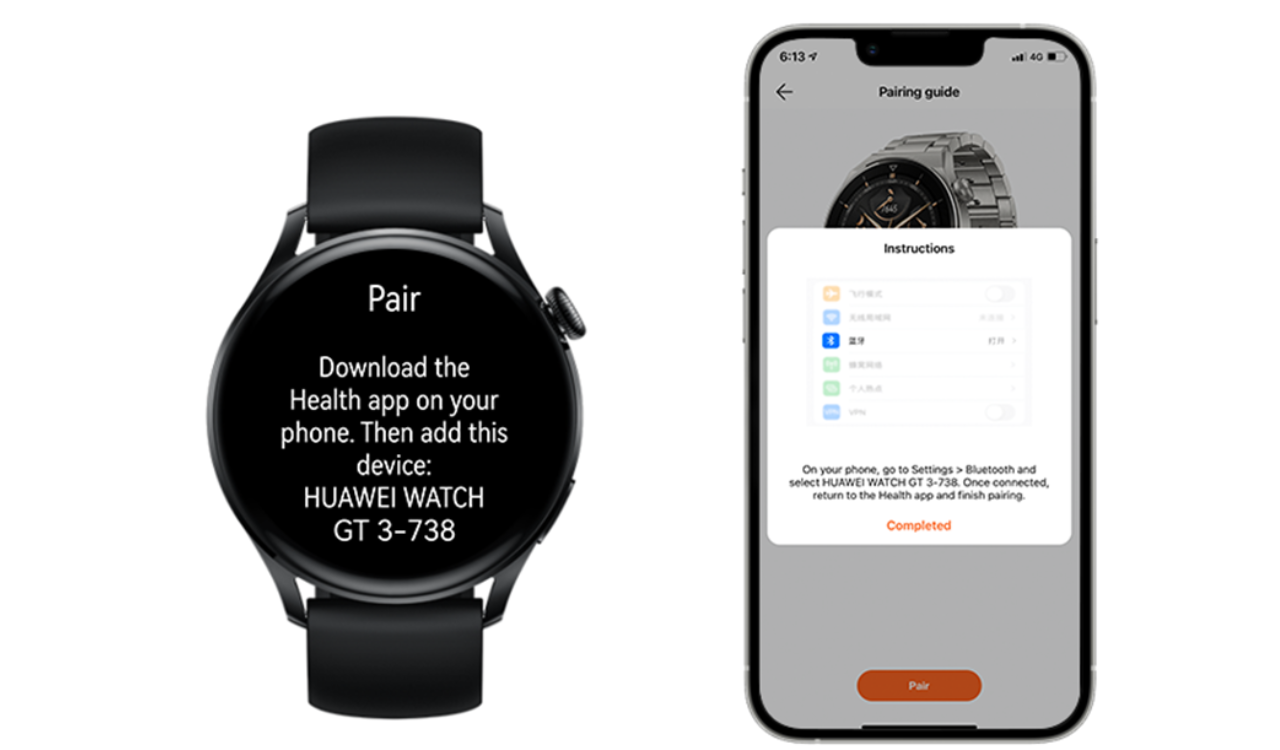
3. Follow the onscreen instructions to go to Settings > Bluetooth on your phone, and select your watch for pairing. Once a pairing request is displayed on the watch screen, touch √.

4. Open the HUAWEI Health app on your phone, touch in the upper right corner, then touch Add, and follow the onscreen instructions to select your watch from the pop-up window.

5. When a pop-up window on your phone requests a Bluetooth pairing via the HUAWEI Health app, touch Pair. Another pop-up window will display, asking you whether to allow the watch to display phone notifications. Touch Pair.

6. Wait several seconds for the HUAWEI Health app to display a message indicating that the pairing is successful. Touch Done to complete the pairing.

Pairing fails when connecting to another phone

When pairing the HUAWEI WATCH GT 3 with another phone, the HUAWEI Health app is unable to find the watch name, or displays a message indicating that the pairing has failed. If so, you’ll need to remove the watch from the HUAWEI Health app on the phone that it was previously connected to, or from that phone’s Bluetooth list.

1. To unpair your watch from the HUAWEI Health app:

Open the HUAWEI Health app, touch Devices in the lower right corner and select your watch name. On the device details screen, touch and then Unpair device in the upper right corner. (If you have paired your phone with more than one wearable device and would like to delete them, open the HUAWEI Health app, touch Devices in the lower right corner and then Show all. Swipe left on the names of the wearable devices that you would like to delete, and touch Delete.)

2. To unpair your watch from the phone’s Bluetooth:

On your phone, go to Settings > Bluetooth, touch the icon next to the Bluetooth name of the paired watch, and touch Forget This Device to delete the pairing records. Then, disable Bluetooth on your phone and re-enable it.

Reconnection fails after the watch and phone has been disconnected for a long time

1. When your watch and phone have been disconnected for more than 10 minutes, your watch will stop sending frequent reconnection requests. As a result, your watch and phone will not reconnect immediately. Press the side or Up button on your watch to re-establish a connection.

2. On your phone, go to Settings > Privacy > Location Services, and enable Location Services. Then go back to Settings, swipe down on the screen to select HUAWEI Health, and enable Location.

3. If your watch fails to connect to your phone automatically, open the HUAWEI Health app and touch Connect on the device details screen.

The watch is connected to the phone’s Bluetooth while not connected to or disconnected from the HUAWEI Health app

If you’ve changed the Bluetooth name of your watch, pairing with your iPhone via the HUAWEI Health app will fail.

Find the paired watch in the Bluetooth list on your phone, Name, touch the cross icon next to the text box for editing the watch name to view the original watch name, and touch Complete. Then pair the two devices once again via the HUAWEI Health app.

If you encounter any other pairing or connection issues when using your watch with your iPhone, you should follow the steps below:

1. Update your watch and the HUAWEI Health app to their latest versions.

2. Check whether the Bluetooth name of your watch has been changed. If so, refer to the The watch is connected to the phone’s Bluetooth while not connected to or disconnected from the HUAWEI Health app section.

3. Check whether there are two Bluetooth connections between your iPhone and the watch. If not, you can find the watch on the Bluetooth screen of the phone and try re-establishing a connection.

4. If the issue persists, refer to the steps above for unpairing your watch from the HUAWEI Health app, and unpairing your watch from the phone’s Bluetooth.

5. Restore your watch to its factory settings, uninstall and reinstall the HUAWEI Health app, and check whether there are paired devices displayed in the Bluetooth list on your phone. Then follow the steps for connecting the watch to an iPhone for the first time, to complete the pairing.

Pairing Fails when connecting Huawei Watch GT 3 to My iPhone image 1 Pairing Fails when connecting Huawei Watch GT 3 to My iPhone image 2 Pairing Fails when connecting Huawei Watch GT 3 to My iPhone image 3 Pairing Fails when connecting Huawei Watch GT 3 to My iPhone image 4 Pairing Fails when connecting Huawei Watch GT 3 to My iPhone image 5 Pairing Fails when connecting Huawei Watch GT 3 to My iPhone image

Tags: HuaweiHuawei NewsHuawei Watch GT 3Watch GT 3

Related Posts

Huawei, IUCN, and Global partners highlight Nature Protection's latest technology
Honor Products

Huawei, IUCN, and Global partners highlight Nature Protection’s latest technology

June 6, 2023
Charger Port
Tips And Tricks

Fix a Broken Charger Port on your Smartphone

December 6, 2022
How to restore WhatsApp chat history in Huawei Mate 30 Series
Tips And Tricks

How to restore WhatsApp chat history in Huawei Mate 30 Series

December 5, 2022
WhatsApp online status tips
Tips And Tricks

Hide online status on WhatsApp, follow this simple tweak

October 8, 2022
Download Call Recorder App
Tips And Tricks

Download Call Recorder App for EMUI [v11.0.0.109]

October 8, 2022
Huawei Watch GT 2 Pro Tips Playing Music and Quality sleep
Tips And Tricks

Huawei Watch GT 2 Pro Tips: Playing Music and Quality sleep

April 20, 2022

POPULAR NEWS

Huawei Health App Update

Huawei Health App Update 2026: New AI Features

July 15, 2026
Stable EMUI 12 2023

Updated EMUI 12 plan for Global users [January 2023]

January 19, 2023
Huawei EMUI 13 Eligible Devices

Huawei EMUI 13 Eligible devices for global market

March 22, 2023
Download and Install EMUI 10

Download and Install EMUI 10 on any Huawei phone

February 11, 2020
Huawei Music

Huawei Music Latest 2026 Update

May 28, 2026

EDITOR'S PICK

HarmonyOS 2.0.0.230

February 2022 patch rolling for Huawei Tablet M5 Youth Edition and Honor Tablet 5

June 30, 2022
Huawei logo (13)

Huawei AOS and VOS passes the test of ICV vehicle control operating system

September 19, 2022
Huawei Nova 7 SE 5G Lohas Edition March 2022 security patch pushing out

Huawei Nova 7 SE 5G Lohas Edition March 2022 security patch pushing out

March 21, 2022
Huawei MatePad 10.8 inch

Huawei MatePad 10.8 inch officially launched with Kirin 990, WiFi 6+, EMUI 10.1 and more

July 30, 2020

About

HUpdate brings you the latest Huawei news, HarmonyOS & EMUI updates, firmware releases, and device coverage — all in one place. Stay updated with accurate, timely Huawei tech news.

Categories

  • Android
  • Ark OS
  • Deal
  • EMUI
  • EMUI 10
  • EMUI 10 Timeline
  • EMUI 10.1
  • EMUI 11
  • EMUI 12
  • EMUI 13
  • EMUI 14
  • EMUI 9.1
  • Game
  • Guides And How-To
  • Harmony OS 2
  • HarmonyOS 3
  • HarmonyOS 4
  • HarmonyOS 5
  • Hongmeng
  • Honor Products
  • Huawei 5G
  • Huawei Apps Apk
  • Huawei Mobile Services
  • Huawei News
  • Huawei Phones
  • Huawei Weekly Report
  • Magic UI 3
  • Magic UI 3.1
  • Magic UI 4.0
  • News
  • Tips And Tricks
  • Uncategorized
  • Updates

Recent Posts

  • Huawei Health App Update 2026: New AI Features
  • Huawei Mate 90 Hardware Upgrades & INSPIRE 2026 Cloud News
  • MTN Zambia and Huawei, have teamed up to fix a big problem
  • Huawei & Angola Partner for Smart Grid Transformation & Green Energy
  • About Us
  • Privacy Policy
  • Sitemap
  • Send A Tip

© 2026 HUpdate

No Result
View All Result
  • Home
  • HarmonyOS
    • HarmonyOS History
  • EMUI Updates
    • EMUI History
  • News
  • Send A Tip

© 2026 HUpdate

Go to mobile version